Latest Cisco, PMP, AWS, CompTIA, Microsoft Materials on SALE Get Now Get Now
Home/
Blog/
Switch MAC Address Table: How It Works, How to Manage It, and How to Secure It
SPOTO 2026-07-30 11:08:53
Switch MAC Address

Every Ethernet switch relies on a single, deceptively simple data structure to do its job: the MAC address table (also called the CAM table, for Content Addressable Memory). Get comfortable with how it learns addresses, how to view and manipulate it from the CLI, and how to lock it down against attack, and you'll have covered one of the most fundamental — and most exploitable — pieces of switching behavior. This guide walks through the full picture, from the underlying mechanism to the security hardening that protects it.

How Switches Learn MAC Addresses in the First Place

Before you can manage a MAC address table, it helps to understand exactly how a switch builds one without any manual configuration at all.

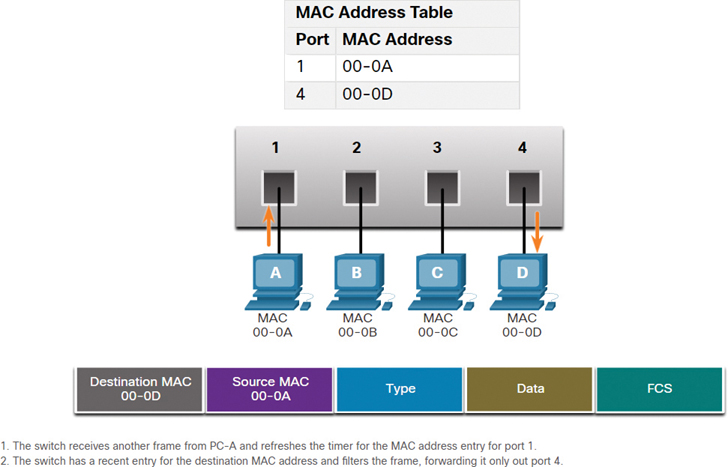
  1. A frame arrives on a port. When a switch receives an Ethernet frame, it examines the frame's source MAC address — this is the address of the device that sent it, not the destination.
  2. The switch records the source address and port. It creates (or refreshes) an entry in the MAC address table mapping that source MAC address to the physical port the frame arrived on. This is the "learning" part of the process, and it happens continuously and automatically for every frame received.
  3. The switch checks the destination address against the table. Next, it looks at the frame's destination MAC address and checks whether that address already exists in the table.
  4. Known destination → the switch forwards, it doesn't flood. If the destination MAC is already in the table, the switch forwards the frame only out the specific port associated with that address — this is what makes switching more efficient than old-style hub-based flooding.
  5. Unknown destination → the switch floods. If the destination MAC isn't yet in the table (common early in a connection, or for a device that rarely transmits), the switch floods the frame out every port in the same VLAN except the one it arrived on. Whichever device actually owns that address responds, and the switch learns its location from that reply.
  6. Entries age out over time. Dynamically learned entries aren't permanent — each has an aging timer (300 seconds/5 minutes is the common default) that resets every time a frame is seen from that source address. If no traffic arrives from a MAC address before its timer expires, the entry is removed to keep the table from filling with stale data.
  7. The table adapts automatically to topology changes. If a device moves to a different port (or its NIC changes), the switch simply relearns the new source-port mapping the next time that device transmits — no manual intervention needed under normal operation.

This self-learning behavior is what makes switches "plug and play" for basic connectivity — but it's also exactly the mechanism attackers try to exploit, which is why the security section later in this guide matters just as much as the mechanics above.

Static vs. Dynamic MAC Entries: Which Should You Use?

Once you understand how dynamic learning works, the next practical question is whether you should ever override it with manually configured static entries. Here's how the two approaches compare:

Criteria Dynamic Entries Static Entries
Configuration effort None — learned automatically Manual entry per device, per port
Scalability Scales effortlessly to thousands of devices Impractical beyond a small number of critical devices
Adapts to device moves Yes — relearns automatically No — must be manually updated if device moves
Table stability Entries age out and get relearned continuously Entries never age out or get removed automatically
Security posture Vulnerable to MAC flooding without additional protections Immune to flooding-based table exhaustion for those specific entries
Best use case General end-user ports, guest devices, most of the network Critical infrastructure: servers, network management stations, security cameras with fixed ports
Management overhead Low Grows linearly with number of static entries
Risk if misconfigured Low — self-correcting Can cause connectivity issues if a device's actual MAC or port changes and the static entry isn't updated

In practice, most networks run almost entirely on dynamic learning and reserve static entries for a small handful of high-value, rarely-moved devices — pairing static entries for critical infrastructure with the port security features covered later gives you the stability benefits without the full management burden of static entries everywhere.

MAC Address Table CLI Commands: A Quick-Reference Cheat Sheet

With the concepts and trade-offs covered, here are the exact commands you'll reach for most often when working with a MAC address table (Cisco IOS syntax shown; most other vendors follow a very similar pattern).

# View the entire MAC address table
switch# show mac address-table

# View MAC entries learned on a specific interface
switch# show mac address-table interface gigabitEthernet 1/0/1

# View MAC entries for a specific VLAN
switch# show mac address-table vlan 10

# View only dynamically learned entries
switch# show mac address-table dynamic

# View only statically configured entries
switch# show mac address-table static

# Count total MAC addresses in the table
switch# show mac address-table count

# Configure a static MAC address entry (bind MAC to a port/VLAN)
switch(config)# mac address-table static 0011.2233.4455 vlan 10 interface gigabitEthernet 1/0/5

# Remove a specific static MAC entry
switch(config)# no mac address-table static 0011.2233.4455 vlan 10 interface gigabitEthernet 1/0/5

# Change the aging time for dynamic entries (in seconds)
switch(config)# mac address-table aging-time 600

# Disable aging entirely for a VLAN (use with caution)
switch(config)# mac address-table aging-time 0 vlan 10

Keep this list handy for day-to-day troubleshooting — but note that clearing entries (covered next) uses a different command family entirely from viewing or configuring them.

Clearing or Flushing the MAC Address Table Without a Reboot

Sometimes you need to force the table to relearn from scratch — after a topology change, a suspected stale entry, or during troubleshooting — without rebooting the switch. Here's how to do it across the most common platforms.

  1. Identify why you need to clear the table. Common triggers include a device that moved ports but the switch hasn't relearned yet (before the aging timer naturally expires), suspected MAC spoofing, or verifying that a fix actually resolved a Layer 2 loop or duplicate-MAC issue.
  2. On Cisco switches, clear the entire dynamic table.
switch# clear mac address-table dynamic
  1. On Cisco switches, clear entries for a specific interface only.
switch# clear mac address-table dynamic interface gigabitEthernet 1/0/1
  1. On Cisco switches, clear entries for a specific VLAN only.
switch# clear mac address-table dynamic vlan 10
  1. On HP/HPE (Comware or ProVision) switches, use the equivalent flush command.
switch# clear mac-address

(Comware-based switches use reset mac-address-table dynamic instead — check your specific platform family, since HP's syntax varies between ProVision and Comware OS.)

  1. On Huawei switches, use the reset command.
<Huawei> reset mac-address dynamic
  1. Verify the clear operation worked. Immediately after clearing, run the show/display mac-address equivalent for your platform — the table should show a sharp drop in entries, which then repopulate naturally as traffic resumes.
  2. Expect a brief flooding period after clearing. Right after a flush, the switch has no dynamic entries, so it will flood unicast frames to unknown destinations until it relearns — this is normal and typically resolves within seconds on an active network.

Clearing the table is a safe, non-disruptive operation on its own — the brief flooding period is a normal side effect, not a sign something went wrong.

Protecting the MAC Address Table from Flooding Attacks

The dynamic learning behavior covered earlier has an exploitable weakness: an attacker can flood a switch with frames using thousands of fake source MAC addresses, filling the table's finite capacity. Once full, many switches fail open — flooding all traffic to all ports like a hub, which lets an attacker on any port sniff traffic meant for other devices. Port security is the primary defense.

  1. Enable port security on access ports. This is the foundational step — port security restricts how many and which MAC addresses are allowed to be learned on a given port.
switch(config)# interface gigabitEthernet 1/0/1
switch(config-if)# switchport mode access
switch(config-if)# switchport port-security
  1. Set a maximum number of allowed MAC addresses per port. For a typical end-user port with a single device, one is usually sufficient; adjust upward for ports feeding an IP phone plus a PC.
switch(config-if)# switchport port-security maximum 2
  1. Choose a violation action. This determines what happens when the maximum is exceeded — protect (drop offending traffic silently), restrict (drop and log/increment a counter), or shutdown (err-disable the port entirely, the most secure but most disruptive default).
switch(config-if)# switchport port-security violation restrict
  1. Decide between sticky and fully static learning. "Sticky" learning lets the switch dynamically learn the first allowed MAC address(es) and then convert them to static entries automatically — a good middle ground between manual effort and security.
switch(config-if)# switchport port-security mac-address sticky
  1. Set an aging time for port-security entries if needed. This allows legitimate device changes (like a laptop swap) to be accommodated without manual intervention, while still capping the number of simultaneous addresses.
switch(config-if)# switchport port-security aging time 60
switch(config-if)# switchport port-security aging type inactivity
  1. Verify port security status and violation counts.
switch# show port-security interface gigabitEthernet 1/0/1
switch# show port-security address
  1. Recover an err-disabled port after a violation. If you used the shutdown violation action and a port trips, it needs to be manually re-enabled (or configured for auto-recovery) rather than clearing on its own.
switch(config)# interface gigabitEthernet 1/0/1
switch(config-if)# shutdown
switch(config-if)# no shutdown
  1. Layer in additional protections for high-risk environments. Beyond port security, features like DHCP snooping and Dynamic ARP Inspection complement MAC-table protection by addressing related spoofing vectors that port security alone doesn't cover.

Port security turns the switch's biggest structural weakness — unlimited automatic learning — into a bounded, monitored process, which is the difference between a MAC flooding attempt failing quietly and one that takes down visibility across an entire VLAN.

Bringing It All Together

The MAC address table is one of those pieces of networking infrastructure that works invisibly until something goes wrong — a device that won't reconnect after a move, a suspicious flood of unknown traffic, or a switch behaving like a hub during an attack. Understanding the learning mechanism covered at the start of this guide makes the rest fall into place naturally: you'll know when static entries are worth the management overhead, which commands to reach for during day-to-day work or troubleshooting, and why port security isn't optional hardening but a direct countermeasure to how the table itself is built. Master these fundamentals, and MAC-table issues go from mysterious to routine.

Latest Passing Reports from SPOTO Candidates
200-301

200-301

200-301-P

200-301-P

200-301-P

200-301-P

200-301

200-301

200-201

200-201

200-301-P

200-301-P

200-301-P

200-301-P

200-201

200-201

200-301-P

200-301-P

200-301-P

200-301-P

Write a Reply or Comment
Home/Blog/Switch MAC Address Table: How It Works, How to Manage It, and How to Secure It
Switch MAC Address Table: How It Works, How to Manage It, and How to Secure It
SPOTO 2026-07-30 11:08:53
Switch MAC Address

Every Ethernet switch relies on a single, deceptively simple data structure to do its job: the MAC address table (also called the CAM table, for Content Addressable Memory). Get comfortable with how it learns addresses, how to view and manipulate it from the CLI, and how to lock it down against attack, and you'll have covered one of the most fundamental — and most exploitable — pieces of switching behavior. This guide walks through the full picture, from the underlying mechanism to the security hardening that protects it.

How Switches Learn MAC Addresses in the First Place

Before you can manage a MAC address table, it helps to understand exactly how a switch builds one without any manual configuration at all.

  1. A frame arrives on a port. When a switch receives an Ethernet frame, it examines the frame's source MAC address — this is the address of the device that sent it, not the destination.
  2. The switch records the source address and port. It creates (or refreshes) an entry in the MAC address table mapping that source MAC address to the physical port the frame arrived on. This is the "learning" part of the process, and it happens continuously and automatically for every frame received.
  3. The switch checks the destination address against the table. Next, it looks at the frame's destination MAC address and checks whether that address already exists in the table.
  4. Known destination → the switch forwards, it doesn't flood. If the destination MAC is already in the table, the switch forwards the frame only out the specific port associated with that address — this is what makes switching more efficient than old-style hub-based flooding.
  5. Unknown destination → the switch floods. If the destination MAC isn't yet in the table (common early in a connection, or for a device that rarely transmits), the switch floods the frame out every port in the same VLAN except the one it arrived on. Whichever device actually owns that address responds, and the switch learns its location from that reply.
  6. Entries age out over time. Dynamically learned entries aren't permanent — each has an aging timer (300 seconds/5 minutes is the common default) that resets every time a frame is seen from that source address. If no traffic arrives from a MAC address before its timer expires, the entry is removed to keep the table from filling with stale data.
  7. The table adapts automatically to topology changes. If a device moves to a different port (or its NIC changes), the switch simply relearns the new source-port mapping the next time that device transmits — no manual intervention needed under normal operation.

This self-learning behavior is what makes switches "plug and play" for basic connectivity — but it's also exactly the mechanism attackers try to exploit, which is why the security section later in this guide matters just as much as the mechanics above.

Static vs. Dynamic MAC Entries: Which Should You Use?

Once you understand how dynamic learning works, the next practical question is whether you should ever override it with manually configured static entries. Here's how the two approaches compare:

Criteria Dynamic Entries Static Entries
Configuration effort None — learned automatically Manual entry per device, per port
Scalability Scales effortlessly to thousands of devices Impractical beyond a small number of critical devices
Adapts to device moves Yes — relearns automatically No — must be manually updated if device moves
Table stability Entries age out and get relearned continuously Entries never age out or get removed automatically
Security posture Vulnerable to MAC flooding without additional protections Immune to flooding-based table exhaustion for those specific entries
Best use case General end-user ports, guest devices, most of the network Critical infrastructure: servers, network management stations, security cameras with fixed ports
Management overhead Low Grows linearly with number of static entries
Risk if misconfigured Low — self-correcting Can cause connectivity issues if a device's actual MAC or port changes and the static entry isn't updated

In practice, most networks run almost entirely on dynamic learning and reserve static entries for a small handful of high-value, rarely-moved devices — pairing static entries for critical infrastructure with the port security features covered later gives you the stability benefits without the full management burden of static entries everywhere.

MAC Address Table CLI Commands: A Quick-Reference Cheat Sheet

With the concepts and trade-offs covered, here are the exact commands you'll reach for most often when working with a MAC address table (Cisco IOS syntax shown; most other vendors follow a very similar pattern).

# View the entire MAC address table
switch# show mac address-table

# View MAC entries learned on a specific interface
switch# show mac address-table interface gigabitEthernet 1/0/1

# View MAC entries for a specific VLAN
switch# show mac address-table vlan 10

# View only dynamically learned entries
switch# show mac address-table dynamic

# View only statically configured entries
switch# show mac address-table static

# Count total MAC addresses in the table
switch# show mac address-table count

# Configure a static MAC address entry (bind MAC to a port/VLAN)
switch(config)# mac address-table static 0011.2233.4455 vlan 10 interface gigabitEthernet 1/0/5

# Remove a specific static MAC entry
switch(config)# no mac address-table static 0011.2233.4455 vlan 10 interface gigabitEthernet 1/0/5

# Change the aging time for dynamic entries (in seconds)
switch(config)# mac address-table aging-time 600

# Disable aging entirely for a VLAN (use with caution)
switch(config)# mac address-table aging-time 0 vlan 10

Keep this list handy for day-to-day troubleshooting — but note that clearing entries (covered next) uses a different command family entirely from viewing or configuring them.

Clearing or Flushing the MAC Address Table Without a Reboot

Sometimes you need to force the table to relearn from scratch — after a topology change, a suspected stale entry, or during troubleshooting — without rebooting the switch. Here's how to do it across the most common platforms.

  1. Identify why you need to clear the table. Common triggers include a device that moved ports but the switch hasn't relearned yet (before the aging timer naturally expires), suspected MAC spoofing, or verifying that a fix actually resolved a Layer 2 loop or duplicate-MAC issue.
  2. On Cisco switches, clear the entire dynamic table.
switch# clear mac address-table dynamic
  1. On Cisco switches, clear entries for a specific interface only.
switch# clear mac address-table dynamic interface gigabitEthernet 1/0/1
  1. On Cisco switches, clear entries for a specific VLAN only.
switch# clear mac address-table dynamic vlan 10
  1. On HP/HPE (Comware or ProVision) switches, use the equivalent flush command.
switch# clear mac-address

(Comware-based switches use reset mac-address-table dynamic instead — check your specific platform family, since HP's syntax varies between ProVision and Comware OS.)

  1. On Huawei switches, use the reset command.
<Huawei> reset mac-address dynamic
  1. Verify the clear operation worked. Immediately after clearing, run the show/display mac-address equivalent for your platform — the table should show a sharp drop in entries, which then repopulate naturally as traffic resumes.
  2. Expect a brief flooding period after clearing. Right after a flush, the switch has no dynamic entries, so it will flood unicast frames to unknown destinations until it relearns — this is normal and typically resolves within seconds on an active network.

Clearing the table is a safe, non-disruptive operation on its own — the brief flooding period is a normal side effect, not a sign something went wrong.

Protecting the MAC Address Table from Flooding Attacks

The dynamic learning behavior covered earlier has an exploitable weakness: an attacker can flood a switch with frames using thousands of fake source MAC addresses, filling the table's finite capacity. Once full, many switches fail open — flooding all traffic to all ports like a hub, which lets an attacker on any port sniff traffic meant for other devices. Port security is the primary defense.

  1. Enable port security on access ports. This is the foundational step — port security restricts how many and which MAC addresses are allowed to be learned on a given port.
switch(config)# interface gigabitEthernet 1/0/1
switch(config-if)# switchport mode access
switch(config-if)# switchport port-security
  1. Set a maximum number of allowed MAC addresses per port. For a typical end-user port with a single device, one is usually sufficient; adjust upward for ports feeding an IP phone plus a PC.
switch(config-if)# switchport port-security maximum 2
  1. Choose a violation action. This determines what happens when the maximum is exceeded — protect (drop offending traffic silently), restrict (drop and log/increment a counter), or shutdown (err-disable the port entirely, the most secure but most disruptive default).
switch(config-if)# switchport port-security violation restrict
  1. Decide between sticky and fully static learning. "Sticky" learning lets the switch dynamically learn the first allowed MAC address(es) and then convert them to static entries automatically — a good middle ground between manual effort and security.
switch(config-if)# switchport port-security mac-address sticky
  1. Set an aging time for port-security entries if needed. This allows legitimate device changes (like a laptop swap) to be accommodated without manual intervention, while still capping the number of simultaneous addresses.
switch(config-if)# switchport port-security aging time 60
switch(config-if)# switchport port-security aging type inactivity
  1. Verify port security status and violation counts.
switch# show port-security interface gigabitEthernet 1/0/1
switch# show port-security address
  1. Recover an err-disabled port after a violation. If you used the shutdown violation action and a port trips, it needs to be manually re-enabled (or configured for auto-recovery) rather than clearing on its own.
switch(config)# interface gigabitEthernet 1/0/1
switch(config-if)# shutdown
switch(config-if)# no shutdown
  1. Layer in additional protections for high-risk environments. Beyond port security, features like DHCP snooping and Dynamic ARP Inspection complement MAC-table protection by addressing related spoofing vectors that port security alone doesn't cover.

Port security turns the switch's biggest structural weakness — unlimited automatic learning — into a bounded, monitored process, which is the difference between a MAC flooding attempt failing quietly and one that takes down visibility across an entire VLAN.

Bringing It All Together

The MAC address table is one of those pieces of networking infrastructure that works invisibly until something goes wrong — a device that won't reconnect after a move, a suspicious flood of unknown traffic, or a switch behaving like a hub during an attack. Understanding the learning mechanism covered at the start of this guide makes the rest fall into place naturally: you'll know when static entries are worth the management overhead, which commands to reach for during day-to-day work or troubleshooting, and why port security isn't optional hardening but a direct countermeasure to how the table itself is built. Master these fundamentals, and MAC-table issues go from mysterious to routine.
Latest Passing Reports from SPOTO Candidates
200-301
200-301-P
200-301-P
200-301
200-201
200-301-P
200-301-P
200-201
200-301-P
200-301-P
Write a Reply or Comment
Don't Risk Your Certification Exam Success – Take Real Exam Questions
Eligible to sit for Exam? 100% Exam Pass GuaranteeEligible to sit for Exam? 100% Exam Pass Guarantee
SPOTO Ebooks
Recent Posts
Switch MAC Address Table: How It Works, How to Manage It, and How to Secure It
Building a Switched Campus Network That Scales: Design, Vendors, Configuration, and Refresh Planning
Bridging the Boardroom and IT: A Realistic Breakdown of ISACA's CGEIT Certification
Engineering Privacy by Design: What the Updated ISACA CDPSE Means for Your Career
CompTIA Security Get Certified Get Ahead: Sy0-701 Study Guide​
Fortinet's NSE Certification Overhaul: What Changed on July 15, 2026 and What You Need to Do Next
How to Pass the CCIE Lab Exam: A Complete Roadmap From Study Plan to Exam Day
Navigating Digital Trust: The 5 Most Valuable ISACA Certifications for Your Career
Thinking Like a CISO: What You Need to Know About the CISSP Exam
Bridging Risk and Strategy: An In-Depth Guide to the ISACA CRISC Certification
Excellent
5.0
Based on 5236 reviews
Request more information
I would like to receive email communications about product & offerings from SPOTO & its Affiliates.
I understand I can unsubscribe at any time.