Table of Contents
Network downtime caused by a single point of failure at the default gateway is one of the most preventable outages in enterprise networking. Cisco's Hot Standby Router Protocol (HSRP) solves this by letting two or more routers share a virtual IP address, so if the active router fails, a standby router takes over automatically — often without end users ever noticing. This guide walks through the fundamentals of HSRP, compares its two protocol versions, hands you ready-to-use configuration templates, and shows how to troubleshoot the issues that trip up even experienced engineers.
How HSRP Works and How to Configure It Step by Step
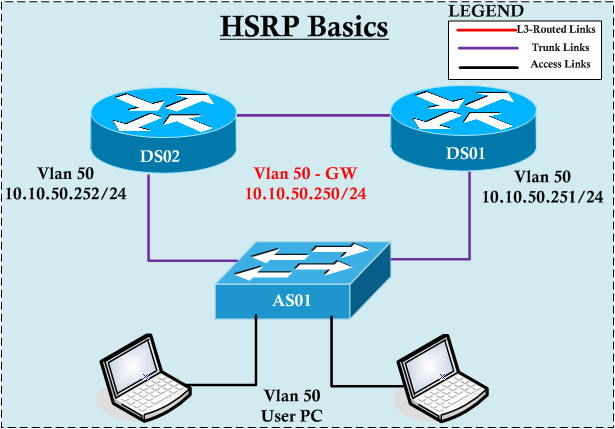
HSRP creates a "virtual router" made up of a virtual IP address and a virtual MAC address, shared across a group of physical routers on the same subnet. One router is elected active (it forwards traffic sent to the virtual IP), another is elected standby (it takes over if the active fails), and any others sit in a listen state ready to participate in the next election. End hosts only need to know the virtual IP as their default gateway — they never need to be reconfigured, even after a failover.
Here's how to set it up on two Cisco IOS routers:
- Enable routing and configure the physical interfaces. Each router needs its own unique IP address on the shared subnet before HSRP can be layered on top.
- Choose an HSRP group number. Group numbers identify which routers belong to the same virtual router instance — this matters when you run multiple HSRP groups on the same interface (e.g., for load balancing across VLANs).
- Assign the virtual IP address with the
standby <group> ip <virtual-ip>command on the relevant interface of every participating router. - Set priorities to control which router becomes active. The router with the higher priority (default is 100) wins the election. Assign your primary router a higher value, like 110.
- Enable preemption if you want the higher-priority router to reclaim the active role automatically once it comes back online after a failure — without this, a recovered router stays in standby until the next election trigger.
- Verify the group state with
show standby briefto confirm one router shows Active and the other shows Standby for the group.
Once these steps are complete, point your hosts' default gateway at the virtual IP, and the pair is ready to survive a router failure transparently. The next question most teams face is which version of HSRP to actually deploy — that depends on a few feature differences worth knowing before you commit.
HSRP Version 1 vs Version 2: Which Should You Deploy?
Cisco IOS defaults to HSRP version 1, but version 2 is generally the better choice for modern networks. The table below breaks down the practical differences that matter when deciding.
| Feature | HSRP v1 | HSRP v2 |
|---|---|---|
| Group number range | 0–255 | 0–4095 |
| Multicast address used | 224.0.0.2 | 224.0.0.102 |
| IPv6 support | No | Yes |
| Virtual MAC address format | 0000.0C07.ACxx (xx = group in hex) | 0000.0C9F.Fxxx |
| Millisecond timers | Not supported | Supported |
| Authentication | Plain text only | Plain text and MD5 |
| Interoperability | Can't interoperate with v2 devices in the same group | Can't interoperate with v1 devices in the same group |
For most new deployments, v2 is the practical default: it supports far more HSRP groups per interface, allows sub-second failover with millisecond timers, and adds MD5 authentication for better security. The main reason to stay on v1 is compatibility with older Cisco hardware or existing configurations that haven't been migrated. To explicitly select a version, use standby version 2 (or 1) under the interface before configuring the group — mixing versions in the same group on different routers will prevent them from forming a proper HSRP pair.
With the version decision made, here are the actual commands to get a group running.
Ready-to-Use HSRP Configuration Templates
Below are standard Cisco IOS CLI snippets you can adapt directly. Replace the bracketed placeholders with your own values.
! --- Basic HSRP group configuration ---
interface [interface-id]
 ip address [ip-address] [subnet-mask]
 standby version 2
 standby [group-number] ip [virtual-ip-address]
 standby [group-number] priority [value]
 standby [group-number] preempt

! --- Example: Router A (intended primary) ---
interface GigabitEthernet0/1
 ip address 10.10.10.2 255.255.255.0
 standby version 2
 standby 1 ip 10.10.10.1
 standby 1 priority 110
 standby 1 preempt

! --- Example: Router B (intended backup) ---
interface GigabitEthernet0/1
 ip address 10.10.10.3 255.255.255.0
 standby version 2
 standby 1 ip 10.10.10.1
 standby 1 priority 100
 standby 1 preempt

! --- Add MD5 authentication (v2 only) ---
interface GigabitEthernet0/1
 standby 1 authentication md5 key-string [shared-secret]

! --- Adjust hello and hold timers (v2 supports msec) ---
interface GigabitEthernet0/1
 standby 1 timers msec 200 msec 750

! --- Enable interface tracking so priority drops on uplink failure ---
interface GigabitEthernet0/1
 standby 1 track [interface-id] decrement [value]

! --- Verification commands ---
show standby brief
show standby [interface-id] [group-number]
These snippets cover the majority of deployment scenarios, but HSRP has a handful of failure modes that only show up once a group is live and handling real traffic — that's where troubleshooting skills come in.
Troubleshooting Common HSRP Issues
Even a correctly typed configuration can misbehave once it's exposed to real network conditions. Here's how to work through the most common problems.
- Diagnose split-brain (dual-active) scenarios first. If both routers claim to be active simultaneously, it usually means HSRP hello packets aren't reaching one another — check for an access list blocking multicast traffic, a mismatched HSRP version between routers, or a physical link failure on the segment carrying hellos.
show standbyon both routers will confirm if each believes it's active. - Check for state flapping between Active and Standby. Flapping is commonly caused by timers set too aggressively for the link's actual latency, or by intermittent packet loss on the shared segment. Loosening the hello/hold timers slightly, or investigating the underlying link quality, usually resolves it.
- Review preempt delay if failover happens before the router is truly ready. A recovering router may win the election via preemption before its routing table or upstream links have fully converged, causing brief blackholing. Use
standby [group] preempt delay minimum [seconds]to force a wait period before the router reclaims active status. - Confirm object tracking is actually decrementing priority. If a router with a failed uplink still refuses to relinquish the active role, verify the tracked object (interface or IP SLA) is correctly referenced and that the priority decrement is large enough to drop below the peer's priority — a decrement of 1 rarely changes the election outcome.
- Validate authentication consistency. If routers stop seeing each other's hellos and everything else looks correct, mismatched or expired MD5 keys are a common silent cause, especially after a password rotation.
- Watch for version or group-number mismatches. Two routers running different HSRP versions, or with a typo in the group number, will never form a pair — they'll just sit as two independent "active" routers indefinitely, which looks identical to split-brain at first glance.
Working through these checks in order — from packet reachability, to timers, to tracking logic — resolves the vast majority of real-world HSRP issues without needing to tear down and rebuild the configuration from scratch.